Introduction
In the intricate world of modern JavaScript and web development, projects are rarely simple one-file scripts. They are complex ecosystems involving multiple languages (JavaScript, TypeScript, JSX, CSS-in-JS), diverse tools (linters, formatters, transpilers, bundlers), and varied environments (development, testing, production). At the heart of orchestrating this complexity lies a collection of seemingly simple text files: configuration files. These files are the silent architects that dictate how your code is written, processed, built, and executed.
Understanding these configuration files is not just about knowing what they do, but how they fundamentally influence the entire development lifecycle. For a beginner developer stepping into Node.js or a frontend framework like Angular, the sheer number and interdependencies of these files can be overwhelming. Yet, mastering them unlocks a deeper comprehension of your project’s mechanics, empowering you to debug issues, customize behavior, and contribute more effectively.
This guide will demystify the most common JavaScript and web development configuration files. We’ll explore their purpose, delve into how development tools interpret them internally, trace their impact on everything from code style to runtime behavior, and provide practical advice on modifying them safely. By the end, the purpose and mechanics of these essential files will become intuitive, providing a solid foundation for your journey into advanced web development.
The Problem It Solves
Before the widespread adoption of standardized configuration files, JavaScript development faced significant challenges. Imagine a world where every developer on a team manually configured their editor for code style, leading to inconsistent indentation, quote usage, and semicolon presence. Projects would rely on ad-hoc scripts for build processes, making onboarding new team members a nightmare. Managing dependencies was a manual chore of downloading libraries and linking them directly. Language features from newer JavaScript versions couldn’t be used without breaking compatibility with older browsers, and there was no systematic way to catch common programming errors before runtime.
The core problem was a lack of standardization, automation, and project-wide consistency. How could teams ensure a unified coding style, automate complex build steps, manage project dependencies reliably, enable modern language features, and enforce code quality across diverse environments and developer preferences? Configuration files emerged as the elegant solution. They provide a declarative way to define project-specific rules, settings, and instructions, allowing tools to autonomously enforce standards, transform code, and prepare applications for deployment, thereby solving the chaos of manual, inconsistent, and error-prone development workflows.
High-Level Architecture
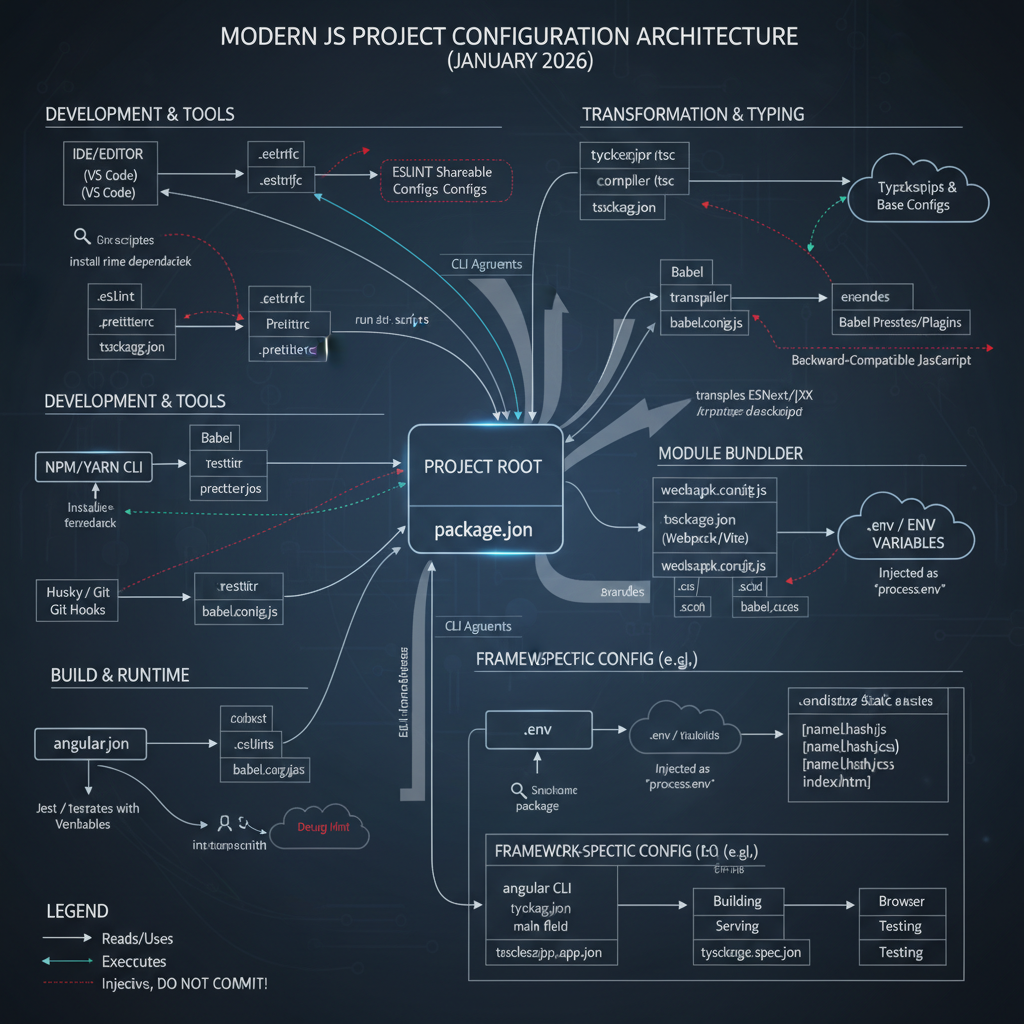
The JavaScript development ecosystem can be thought of as a pipeline where your raw source code undergoes a series of transformations and checks, all guided by configuration files. These files act as blueprints, instructing various tools on how to process the code before it becomes a runnable application.
Component Overview:
- Developer Code: Your raw JavaScript, TypeScript, JSX, etc.
- Configuration Files: Declarative files (e.g., JSON, YAML, JS) that specify rules, settings, and options for various tools.
- Dependency Manager: Tools like npm or yarn that read
package.jsonto install project dependencies. - Node Modules: The directory where installed dependencies reside.
- Linter: Analyzes code for programmatic errors, style violations, and potential bugs, guided by
.eslintrc. - Formatter: Automatically adjusts code style (indentation, quotes, etc.) for consistency, using
.prettierrc. - Transpiler: Converts modern JavaScript/TypeScript into a backward-compatible version that older environments can understand, using
babel.configandtsconfig.json. - Bundler: Combines multiple modules into a few optimized files for deployment, leveraging
webpack.config.jsand sometimes framework-specific configs. - Runtime Environment: The server (Node.js) or browser where the application executes, potentially consuming variables from
.env. - Deployed Application: The final, runnable version of your software.
Data Flow:
Your source code flows through a series of tools. Each tool consults its respective configuration file to understand how it should process the code. For instance, the Linter reads .eslintrc to know which rules to apply. The Transpiler reads tsconfig.json to understand TypeScript settings and babel.config for JavaScript transformations. The Bundler orchestrates the entire process, using webpack.config.js to define entry points, output locations, and how to apply loaders/plugins, which often involve the transpiler. Finally, the runtime environment may load .env variables to configure its behavior. package.json acts as a central hub, defining project metadata, scripts to run these tools, and managing all their dependencies.
Key Concepts:
- Declarative Configuration: Instead of imperative code, configs describe what should be done.
- Toolchain Orchestration: Config files allow different tools to work together seamlessly.
- Environment Agnostic: They help adapt code for various target environments (browsers, Node.js versions).
- Consistency and Automation: Enforce standards and automate repetitive tasks.
How It Works: Step-by-Step Breakdown
Let’s trace the journey of a JavaScript project from initial setup to a deployable artifact, highlighting how configuration files drive each step.
Step 1: Project Initialization and Dependency Management (package.json)
package.json is the foundational configuration file for almost any JavaScript project. It’s a manifest that describes your project, lists its dependencies, and defines scripts for common tasks.
- What it is for: Project metadata (name, version, author), dependency management (what libraries your project needs), and defining executable scripts.
- How tools read it:
npm(Node Package Manager) andyarnare the primary tools that readpackage.json. When you runnpm installoryarn install, these tools parse thedependenciesanddevDependenciessections, fetch the specified packages from a registry (like npmjs.com), and place them in thenode_modulesdirectory. When you runnpm run <script-name>,npmlooks up the script in thescriptssection and executes the associated command. - Impact: Defines your project’s identity, ensures all necessary libraries are available, and provides a standardized way to run common development tasks (like linting, building, testing).
Example: package.json
{
  "name": "my-js-app",
  "version": "1.0.0",
  "description": "A simple JavaScript application",
  "main": "dist/index.js",
  "scripts": {
    "start": "node dist/index.js",
    "build": "webpack --config webpack.config.js",
    "lint": "eslint . --ext .js,.ts",
    "format": "prettier --write .",
    "test": "jest"
  },
  "dependencies": {
    "express": "^4.18.2"
  },
  "devDependencies": {
    "@types/express": "^4.17.21",
    "@types/node": "^20.10.6",
    "eslint": "^8.56.0",
    "jest": "^29.7.0",
    "prettier": "^3.1.1",
    "ts-loader": "^9.5.1",
    "typescript": "^5.3.3",
    "webpack": "^5.89.0",
    "webpack-cli": "^5.1.4"
  },
  "author": "AI Expert",
  "license": "MIT"
}
Step 2: Code Quality and Style Enforcement (.eslintrc, .prettierrc)
Once dependencies are managed, the focus shifts to ensuring code quality and consistency.
.eslintrc(ESLint configuration):- What it is for: Defines rules for static code analysis to catch errors, enforce coding standards, and identify problematic patterns.
- How tools read it: The
eslintCLI tool (or its integrations in IDEs, build tools) recursively searches for.eslintrcfiles, starting from the file being linted up to the project root. It merges rules from extended configurations (e.g.,eslint:recommended,@typescript-eslint/eslint-recommended) and applies overrides based on file patterns. It parses your code into an Abstract Syntax Tree (AST) and then traverses the AST, checking each node against the configured rules. - Impact: Improves code reliability, readability, and maintainability by enforcing a consistent quality bar across the codebase. Catches potential bugs early.
.prettierrc(Prettier configuration):- What it is for: Defines opinionated rules for code formatting (indentation, line length, quote style, semicolons) to ensure consistent visual presentation.
- How tools read it: The
prettierCLI tool (or its integrations) searches for.prettierrcfiles (orprettier.config.js,.prettierrc.json, etc.) in the project root. It reads these options and then reformats the specified code files according to these rules. Unlike linters, Prettier focuses solely on style, not correctness. - Impact: Eliminates style debates, automates code formatting, and ensures a uniform aesthetic across the entire project, allowing developers to focus on logic.
Example: .eslintrc.js
module.exports = {
  root: true, // Stops ESLint from looking for config files in parent directories
  parser: '@typescript-eslint/parser', // Specifies the ESLint parser for TypeScript
  plugins: [
    '@typescript-eslint', // Enables the TypeScript ESLint plugin
    'prettier' // Enables eslint-plugin-prettier
  ],
  extends: [
    'eslint:recommended', // Uses the recommended rules from ESLint
    'plugin:@typescript-eslint/eslint-recommended', // Disables ESLint rules that conflict with TypeScript
    'plugin:@typescript-eslint/recommended', // Uses recommended rules from @typescript-eslint/eslint-plugin
    'prettier' // Uses eslint-config-prettier to disable ESLint rules that conflict with Prettier
  ],
  rules: {
    // Custom ESLint rules
    'no-console': 'warn', // Warns on console.log
    'indent': ['error', 2], // Enforce 2-space indentation
    'quotes': ['error', 'single'], // Enforce single quotes
    'semi': ['error', 'always'], // Enforce semicolons
    '@typescript-eslint/explicit-module-boundary-types': 'off' // Example of disabling a specific TS rule
  },
  env: {
    node: true, // Enables Node.js global variables and Node.js scoping
    browser: true, // Enables browser global variables
    es2021: true // Adds all ECMAScript 2021 globals and automatically sets the ecmaVersion parser option to 12
  }
};
Example: .prettierrc.json
{
  "singleQuote": true,
  "semi": true,
  "tabWidth": 2,
  "printWidth": 100,
  "trailingComma": "all",
  "arrowParens": "always"
}
Step 3: Language Modernization and Type Checking (tsconfig.json, babel.config)
Modern JavaScript development heavily relies on features not yet universally supported by all browsers or Node.js versions, or uses supersets like TypeScript. Transpilers and compilers bridge this gap.
tsconfig.json(TypeScript configuration):- What it is for: Configures the TypeScript compiler (
tsc). It defines compiler options (e.g., target JavaScript version, module system, strictness checks), specifies which files to include/exclude, and sets up project references. - How tools read it: The
tsccompiler, as well as tools likets-loader(for Webpack) or IDEs (VS Code), parsetsconfig.json. They use these settings to type-check your TypeScript code, resolve modules, and ultimately compile it down to JavaScript. Theextendsfield allows inheriting configurations from a basetsconfig.json, promoting reusability. - Impact: Enables strong static typing, catches type-related errors at compile-time, improves code predictability, and allows using future JavaScript features with type safety.
- What it is for: Configures the TypeScript compiler (
babel.config(Babel configuration):- What it is for: Configures Babel, a JavaScript transpiler that converts modern JavaScript (ESNext, JSX) into backward-compatible JavaScript that can run in older environments.
- How tools read it: Babel CLI, build tools (like Webpack via
babel-loader), and testing frameworks readbabel.config.js(or.babelrc.json, etc.). Babel uses itspresets(collections of plugins for specific feature sets, like@babel/preset-envfor ESNext) andplugins(individual transformations) to parse your JavaScript into an AST, apply transformations to the AST, and then generate new JavaScript code. - Impact: Allows developers to write code using the latest JavaScript features and syntax (including JSX for React) without worrying about browser compatibility, significantly enhancing developer experience and productivity.
Example: tsconfig.json
{
  "compilerOptions": {
    "target": "es2020", // Compile to ES2020 JavaScript
    "module": "commonjs", // Use CommonJS module system
    "lib": ["es2020", "dom"], // Include ES2020 and DOM library definitions
    "strict": true, // Enable all strict type-checking options
    "esModuleInterop": true, // Enables 'allowSyntheticDefaultImports' for type compatibility
    "skipLibCheck": true, // Skip type checking of declaration files
    "forceConsistentCasingInFileNames": true, // Disallow inconsistently-cased file names
    "outDir": "./dist", // Output directory for compiled JavaScript
    "rootDir": "./src", // Root directory of TypeScript source files
    "baseUrl": "./", // Base directory for resolving non-relative module names
    "paths": { // Module path aliases
      "@app/*": ["src/*"]
    }
  },
  "include": [
    "src/**/*.ts" // Include all .ts files in the src directory
  ],
  "exclude": [
    "node_modules", // Exclude node_modules
    "dist" // Exclude compiled output
  ]
}
Example: babel.config.js
module.exports = {
  presets: [
    [
      '@babel/preset-env', // Transpile modern JS to target environment
      {
        targets: {
          node: 'current' // For Node.js, target the current version
          // browsers: ['last 2 versions', 'not dead', '> 0.2%'] // For browsers
        }
      }
    ],
    '@babel/preset-typescript', // Handle TypeScript syntax
    '@babel/preset-react' // Handle React JSX syntax
  ],
  plugins: [
    // Example: Stage 2 features
    ['@babel/plugin-proposal-decorators', { 'legacy': true }],
    '@babel/plugin-proposal-class-properties'
  ]
};
Step 4: Bundling and Optimization (webpack.config.js)
For web applications, code needs to be bundled, optimized, and prepared for efficient delivery to browsers.
webpack.config.js(Webpack configuration):- What it is for: Webpack is a module bundler. Its configuration file defines how to process a project’s assets (JS, CSS, images, fonts) into a few optimized bundles for the browser. It specifies entry points, output locations, how different file types should be processed (via
loaders), and additional optimizations (viaplugins). - How tools read it: The
webpackCLI tool (or its programmatic API) readswebpack.config.js. It uses theentryproperty to identify the starting points of your application’s module graph. For each module, it determines the appropriateloader(e.g.,ts-loaderfor TypeScript,babel-loaderfor JavaScript) based on file extensions. Loaders transform individual files.Pluginsperform broader tasks like optimizing bundles, managing assets, or injecting environment variables. Webpack then resolves dependencies, builds a dependency graph, and bundles everything into the files specified byoutput. - Impact: Optimizes application loading times, reduces network requests, enables code splitting, and transforms various asset types into browser-compatible formats, which is crucial for performance and user experience in web applications.
- What it is for: Webpack is a module bundler. Its configuration file defines how to process a project’s assets (JS, CSS, images, fonts) into a few optimized bundles for the browser. It specifies entry points, output locations, how different file types should be processed (via
Example: webpack.config.js
const path = require('path');
const HtmlWebpackPlugin = require('html-webpack-plugin');
const Dotenv = require('dotenv-webpack');

module.exports = {
  mode: 'development', // 'production' for optimized builds
  entry: './src/index.ts', // Entry point of the application
  output: {
    filename: 'bundle.js', // Output bundle file name
    path: path.resolve(__dirname, 'dist'), // Output directory
    clean: true // Clean the dist folder before each build
  },
  resolve: {
    extensions: ['.ts', '.js'], // Resolve .ts and .js files
    alias: {
      '@app': path.resolve(__dirname, 'src/') // Path alias for easier imports
    }
  },
  module: {
    rules: [
      {
        test: /\.ts$/, // Apply this rule to .ts files
        exclude: /node_modules/, // Exclude node_modules
        use: [
          {
            loader: 'babel-loader', // Use babel-loader for transpilation
            options: {
              presets: ['@babel/preset-env', '@babel/preset-typescript']
            }
          },
          'ts-loader' // Use ts-loader for TypeScript compilation
        ]
      },
      {
        test: /\.js$/, // Apply this rule to .js files
        exclude: /node_modules/,
        use: {
          loader: 'babel-loader', // Use babel-loader for JS transpilation
          options: {
            presets: ['@babel/preset-env']
          }
        }
      }
      // Add rules for CSS, images, etc.
    ]
  },
  plugins: [
    new HtmlWebpackPlugin({
      template: './public/index.html' // Use this HTML file as a template
    }),
    new Dotenv({
      path: './.env', // Path to your .env file
      safe: true, // Load .env.example (if it exists)
      systemvars: true // Allow system environment variables
    })
  ],
  devServer: {
    static: path.join(__dirname, 'dist'), // Serve content from 'dist'
    compress: true,
    port: 9000
  }
};
Step 5: Environment-Specific Behavior (.env)
Applications often require different configurations or API keys depending on the environment (development, staging, production).
.env(Environment variables):- What it is for: Stores environment-specific variables (e.g., API keys, database URLs, feature flags) that should not be committed to version control.
- How tools read it: Libraries like
dotenv(for Node.js applications) read.envfiles at application startup and inject key-value pairs intoprocess.env. Frontend build tools (like Webpack viadotenv-webpackplugin or framework CLIs) can also read.envfiles during the build process and embed these values directly into the client-side JavaScript bundle, often prefixing them (e.g.,REACT_APP_for Create React App,VUE_APP_for Vue CLI) to differentiate them from server-side variables. - Impact: Provides a flexible and secure way to manage sensitive or environment-dependent configurations without hardcoding them, ensuring that the same codebase can behave differently across environments.
Example: .env
NODE_ENV=development
API_BASE_URL=http://localhost:3000/api
STRIPE_PUBLIC_KEY=pk_test_XXXXXXXXXXXXXXXXXXXX
FEATURE_FLAG_ANALYTICS=true
Step 6: Framework-Specific Orchestration (e.g., angular.json, next.config.js)
Modern frameworks often provide their own configuration files that abstract and orchestrate the underlying toolchain (Webpack, Babel, ESLint, TypeScript).
angular.json(Angular CLI configuration):- What it is for: The primary configuration file for an Angular workspace. It defines projects within the workspace, their build targets, testing configurations, linting, and other CLI settings. It acts as a high-level orchestrator for the Angular CLI’s commands.
- How tools read it: The Angular CLI (
ng) readsangular.jsonto understand the structure of your workspace. When you runng build,ng serve,ng test, orng lint, the CLI uses the settings in this file to configure its internal Webpack, Karma/Jasmine, and ESLint processes. It determines which builder (e.g.,@angular-devkit/build-angular:browser) to use for a specific target and passes options to it. - Impact: Simplifies complex build and development workflows, provides a consistent way to manage multi-project workspaces, and integrates various tools under a single, opinionated command-line interface, reducing boilerplate for developers.
Example: angular.json snippet (simplified)
{
  "$schema": "./node_modules/@angular/cli/lib/config/schema.json",
  "version": 1,
  "newProjectRoot": "projects",
  "projects": {
    "my-angular-app": {
      "projectType": "application",
      "schematics": {
        "@schematics/angular:component": {
          "style": "scss"
        }
      },
      "root": "",
      "sourceRoot": "src",
      "prefix": "app",
      "architect": {
        "build": {
          "builder": "@angular-devkit/build-angular:browser",
          "options": {
            "outputPath": "dist/my-angular-app",
            "index": "src/index.html",
            "main": "src/main.ts",
            "polyfills": [
              "zone.js"
            ],
            "tsConfig": "tsconfig.app.json",
            "assets": [
              "src/favicon.ico",
              "src/assets"
            ],
            "styles": [
              "src/styles.scss"
            ],
            "scripts": []
          },
          "configurations": {
            "production": {
              "budgets": [
                {
                  "type": "initial",
                  "maximumWarning": "500kb",
                  "maximumError": "1mb"
                },
                {
                  "type": "anyComponentStyle",
                  "maximumWarning": "2kb",
                  "maximumError": "4kb"
                }
              ],
              "outputHashing": "all"
            },
            "development": {
              "buildOptimizer": false,
              "optimization": false,
              "vendorChunk": true,
              "extractLicenses": false,
              "sourceMap": true,
              "namedChunks": true
            }
          },
          "defaultConfiguration": "production"
        },
        "serve": {
          "builder": "@angular-devkit/build-angular:dev-server",
          "configurations": {
            "production": {
              "browserTarget": "my-angular-app:build:production"
            },
            "development": {
              "browserTarget": "my-angular-app:build:development"
            }
          },
          "defaultConfiguration": "development"
        },
        "lint": {
          "builder": "@angular-eslint/builder:lint",
          "options": {
            "lintFilePatterns": [
              "src/**/*.ts",
              "src/**/*.html"
            ]
          }
        }
      }
    }
  }
}
Deep Dive: Internal Mechanisms
Understanding the internal mechanisms by which tools interpret and apply configurations is key to debugging and advanced customization.
Mechanism 1: Configuration Resolution Flow
Most tools employ a hierarchical and cascading strategy to resolve configurations. This allows for global defaults, project-specific overrides, and even file-specific adjustments.
Mental Model: “Nearest config wins, with extensions providing base.”
- Search Order: When a tool needs configuration for a file, it typically starts searching from the directory containing that file, moving upwards towards the project root. Some tools (like ESLint) might even look in your user home directory for global defaults.
extends/ Inheritance: Many configuration files (e.g.,.eslintrc,tsconfig.json) support anextendsproperty. This allows you to inherit a base configuration from another file or a published package. The base configuration’s rules are loaded first.- Merging and Overrides: As the tool finds configuration files in its search path, it merges them. Rules defined in a more specific (closer to the file) or later-loaded configuration take precedence and override earlier ones. For example, a
rulesentry in your project’s.eslintrcwill override the same rule inherited fromeslint:recommended. root/stopflags: Files like.eslintrcoften have aroot: trueproperty. This tells the tool to stop searching for configuration files in parent directories, ensuring that a project’s configuration is self-contained.- File-specific Overrides: Some configurations allow inline comments (e.g.,
// eslint-disable-next-line) or specific override sections (e.g.,overridesin.eslintrc) to apply different rules based on file patterns (globs).
Step-by-step resolution flow for ESLint:
- ESLint starts at the target file’s directory.
- It looks for
.eslintrc.*files (.js,.json,.yml, etc.). - If
root: trueis found, it stops searching parent directories. Otherwise, it continues upwards. - It identifies all
extendsentries. These are loaded first, from left to right (later ones override earlier ones). - Plugins and parsers are loaded.
rulesdefined directly in the current.eslintrcare applied, overriding any inherited rules.overridessections are processed. If a file matches a glob pattern inoverrides, those specific rules are applied, taking highest precedence.
This cascading mechanism allows for powerful and flexible configuration, from enterprise-wide standards to project-specific tweaks, down to individual file exceptions.
Mechanism 2: Abstract Syntax Trees (ASTs)
At a lower level, linters, formatters, and transpilers don’t operate on raw text. They first parse your code into an Abstract Syntax Tree (AST).
- What it is: An AST is a tree representation of the syntactic structure of source code. Each node in the tree represents a construct in the code (e.g., a variable declaration, a function call, an if statement).
- How it works:
- Parsing: A
parser(e.g.,espreefor ESLint,@typescript-eslint/parserfor TypeScript code, Babel’s own parser) takes your source code string and converts it into an AST. This process validates syntax. - Traversal: Once the AST is built, tools traverse it.
- Linters (ESLint):
pluginsandrulesdefine visitors for specific AST node types (e.g.,FunctionDeclaration,VariableDeclarator). When the traversal visits a matching node, the rule’s logic is executed. For example, a “no-unused-vars” rule might check if aVariableDeclaratorhas any references later in the AST. If a violation is found, ESLint reports it, often with precise line and column numbers derived from the AST node. - Formatters (Prettier): Prettier also builds an AST but then converts it into its own intermediate “document” format. It then prints this document back into code, enforcing its style rules (e.g., deciding where to break lines, add semicolons) based on the structure defined by the AST, rather than checking against existing style.
- Transpilers (Babel): Babel parses code into an AST. Its
pluginsthen transform specific nodes in the AST. For example, a plugin forconsttovarconversion would findVariableDeclarationnodes withkind: 'const'and changekindto'var'. After all transformations, ageneratorconverts the modified AST back into JavaScript code.
- Linters (ESLint):
- Parsing: A
- Performance Implications: AST parsing is computationally intensive. Tools often employ caching (e.g., Babel’s cache directory) to avoid re-parsing unchanged files. The complexity of rules and transformations can also impact performance.
Mechanism 3: Environment Variable Injection
The .env file mechanism relies on replacing symbolic placeholders with actual values, either at build time or runtime.
- Build-time Injection (for client-side bundles):
- A plugin (e.g.,
dotenv-webpack,DefinePluginin Webpack) reads the.envfile during the bundling process. - It then performs a text replacement in the bundled JavaScript code, replacing occurrences of
process.env.YOUR_VAR(or similar) with the actual string value from the.envfile. - Crucially, these values are embedded directly into the client-side bundle. This means they become public if the bundle is served to a browser. Hence, sensitive secrets should not be exposed this way for client-side applications.
- A plugin (e.g.,
- Runtime Injection (for Node.js servers):
- A library like
dotenvis typically imported and configured at the very beginning of your Node.js application’s entry point (e.g.,require('dotenv').config();). - When
config()is called,dotenvreads the.envfile in the current working directory. - It then adds the key-value pairs from the
.envfile to Node.js’s globalprocess.envobject. If an environment variable already exists (e.g., set by the operating system),dotenvtypically does not override it, allowing system variables to take precedence. - Subsequent code can then access these variables via
process.env.YOUR_VAR. This method is safer for secrets as they remain on the server.
- A library like
Hands-On Example: Building a Mini Version
Let’s create a very simplified “config reader” to illustrate how a tool might read a configuration and apply a simple rule. We’ll simulate a mini-linter that checks for a specific variable name.
// mini-linter.js
const fs = require('fs');
const path = require('path');

/**
 * Very simplified configuration schema for our mini-linter.
 * Example:
 * {
 *   "rules": {
 *     "no-bad-variable-names": {
 *       "severity": "error",
 *       "badNames": ["foo", "bar"]
 *     }
 *   }
 * }
 */

/**
 * Reads and parses a configuration file.
 * @param {string} configPath Path to the configuration file.
 * @returns {object} Parsed configuration object.
 */
function loadConfig(configPath) {
  try {
    const fullPath = path.resolve(configPath);
    const configFileContent = fs.readFileSync(fullPath, 'utf8');
    return JSON.parse(configFileContent);
  } catch (error) {
    console.error(`Error loading config file at ${configPath}:`, error.message);
    return {};
  }
}

/**
 * Very basic tokenization (not a full AST parser).
 * Simply splits code into words to find variable names.
 * @param {string} code The source code string.
 * @returns {string[]} An array of words/tokens.
 */
function simpleTokenize(code) {
  // A very naive tokenizer: splits by non-alphanumeric characters
  return code.split(/\W+/).filter(Boolean);
}

/**
 * Applies a single "no-bad-variable-names" rule.
 * @param {string} code The source code to lint.
 * @param {object} config The loaded configuration.
 * @returns {string[]} An array of detected issues.
 */
function lintCode(code, config) {
  const issues = [];
  const ruleConfig = config.rules && config.rules['no-bad-variable-names'];

  if (!ruleConfig || ruleConfig.severity === 'off') {
    return issues; // Rule is off
  }

  const badNames = ruleConfig.badNames || [];
  const tokens = simpleTokenize(code);

  tokens.forEach(token => {
    if (badNames.includes(token)) {
      issues.push(
        `${ruleConfig.severity}: Found forbidden variable name '${token}'`
      );
    }
  });

  return issues;
}

// --- Main execution ---
const sourceCode = `
  const foo = 10;
  let myVar = "hello";
  const bar = true;
  function processData() {
    const baz = 20;
  }
`;

const configFileName = '.mini-linterrc.json';
const config = loadConfig(configFileName);

console.log('--- Mini Linter Report ---');
console.log('Loaded config:', JSON.stringify(config, null, 2));

const issues = lintCode(sourceCode, config);

if (issues.length === 0) {
  console.log('No issues found!');
} else {
  console.log('Issues found:');
  issues.forEach(issue => console.log(`- ${issue}`));
}

// How to run:
// 1. Create a file named `.mini-linterrc.json` in the same directory:
//    {
//      "rules": {
//        "no-bad-variable-names": {
//          "severity": "error",
//          "badNames": ["foo", "bar", "temp"]
//        }
//      }
//    }
// 2. Save the JavaScript code above as `mini-linter.js`.
// 3. Run `node mini-linter.js` in your terminal.
Walkthrough:
loadConfig(configPath): This function simulates how a tool locates and reads its configuration. It takes a file path, reads the content, and parses it as JSON. Real tools have more sophisticated logic for searching (upwards,extends), but the core idea is reading a structured file.simpleTokenize(code): This is a highly simplified step that replaces a full AST parser. It merely splits the code into words. A real linter would parse the code into an AST, allowing it to understand the meaning and context offoo(e.g., is it a variable declaration, a function call, a property name?).lintCode(code, config): This function takes the code and the parsedconfig. It then looks for theno-bad-variable-namesrule within theconfig.rulesobject. If the rule is active and hasbadNamesdefined, it iterates through thetokens(our simplified AST representation) and checks if any token matches a forbidden name.- Main Execution: We define some
sourceCode, load a config from.mini-linterrc.json, and then run ourlintCodefunction. The output will show iffooorbar(ortempif added to config) were found as forbidden names, based on the rules defined in.mini-linterrc.json.
This mini-linter demonstrates the fundamental loop: Configuration File -> Tool Reads Config -> Tool Processes Code According to Config -> Tool Produces Output/Transformation.
Real-World Project Example
Let’s set up a small Node.js project using TypeScript, ESLint, Prettier, Webpack, and environment variables to see how these configurations work together.
Project Setup Instructions:
- Create a new directory:
mkdir config-demo && cd config-demo - Initialize npm:
npm init -y - Install dependencies:
npm install typescript @types/node ts-node --save-dev npm install webpack webpack-cli ts-loader html-webpack-plugin dotenv-webpack --save-dev npm install eslint @typescript-eslint/parser @typescript-eslint/eslint-plugin eslint-config-prettier eslint-plugin-prettier --save-dev npm install prettier --save-dev npm install express --save npm install @types/express --save-dev - Create the configuration files and source code as described below.
Full Code with Annotations:
1. package.json (already created by npm init -y and updated by installs)
{
  "name": "config-demo",
  "version": "1.0.0",
  "description": "",
  "main": "dist/bundle.js",
  "scripts": {
    "start": "node dist/server.js",
    "build": "webpack --mode production",
    "lint": "eslint . --ext .ts",
    "format": "prettier --write .",
    "dev": "webpack serve --mode development"
  },
  "keywords": [],
  "author": "",
  "license": "ISC",
  "dependencies": {
    "express": "^4.18.2"
  },
  "devDependencies": {
    "@types/express": "^4.17.21",
    "@types/node": "^20.10.6",
    "@typescript-eslint/eslint-plugin": "^6.18.1",
    "@typescript-eslint/parser": "^6.18.1",
    "dotenv-webpack": "^8.0.1",
    "eslint": "^8.56.0",
    "eslint-config-prettier": "^9.1.0",
    "eslint-plugin-prettier": "^5.1.3",
    "html-webpack-plugin": "^5.6.0",
    "prettier": "^3.1.1",
    "ts-loader": "^9.5.1",
    "ts-node": "^10.9.2",
    "typescript": "^5.3.3",
    "webpack": "^5.89.0",
    "webpack-cli": "^5.1.4",
    "webpack-dev-server": "^4.11.1"
  }
}
2. tsconfig.json
{
  "compilerOptions": {
    "target": "es2020",
    "module": "commonjs",
    "lib": ["es2020", "dom"],
    "strict": true,
    "esModuleInterop": true,
    "skipLibCheck": true,
    "forceConsistentCasingInFileNames": true,
    "outDir": "./dist",
    "rootDir": "./src",
    "baseUrl": "./",
    "paths": {
      "@server/*": ["src/server/*"],
      "@client/*": ["src/client/*"]
    }
  },
  "include": ["src/**/*.ts"],
  "exclude": ["node_modules", "dist"]
}
3. .eslintrc.js
module.exports = {
  root: true,
  parser: '@typescript-eslint/parser',
  plugins: ['@typescript-eslint', 'prettier'],
  extends: [
    'eslint:recommended',
    'plugin:@typescript-eslint/eslint-recommended',
    'plugin:@typescript-eslint/recommended',
    'prettier' // Must be the last one in extends
  ],
  rules: {
    'no-console': 'warn',
    'indent': ['error', 2],
    'quotes': ['error', 'single'],
    'semi': ['error', 'always'],
    '@typescript-eslint/explicit-module-boundary-types': 'off',
    '@typescript-eslint/no-unused-vars': ['warn', { 'argsIgnorePattern': '^_' }]
  },
  env: {
    node: true,
    browser: true,
    es2021: true
  }
};
4. .prettierrc.json
{
  "singleQuote": true,
  "semi": true,
  "tabWidth": 2,
  "printWidth": 100,
  "trailingComma": "all",
  "arrowParens": "always"
}
5. webpack.config.js
const path = require('path');
const HtmlWebpackPlugin = require('html-webpack-plugin');
const Dotenv = require('dotenv-webpack');

module.exports = {
  entry: {
    client: './src/client/index.ts', // Client-side entry point
    server: './src/server/server.ts'  // Server-side entry point
  },
  output: {
    filename: '[name].js', // Output files named client.js and server.js
    path: path.resolve(__dirname, 'dist'),
    clean: true
  },
  resolve: {
    extensions: ['.ts', '.js'],
    alias: {
      '@server': path.resolve(__dirname, 'src/server/'),
      '@client': path.resolve(__dirname, 'src/client/')
    }
  },
  module: {
    rules: [
      {
        test: /\.ts$/,
        exclude: /node_modules/,
        use: 'ts-loader' // ts-loader handles both TS compilation and Babel-like transforms
      }
    ]
  },
  plugins: [
    new HtmlWebpackPlugin({
      template: './public/index.html',
      filename: 'index.html',
      chunks: ['client'] // Only include client.js in index.html
    }),
    new Dotenv({
      path: './.env',
      safe: true,
      systemvars: true,
      allowEmptyValues: true,
      defaults: false
    })
  ],
  devtool: 'source-map', // Enable source maps for easier debugging
  devServer: {
    static: path.join(__dirname, 'dist'),
    compress: true,
    port: 9000,
    open: true, // Open browser automatically
    hot: true, // Enable Hot Module Replacement
    proxy: {
      '/api': 'http://localhost:3000' // Proxy API requests to Node.js server
    }
  },
  // Set target for server bundle to node
  // This tells Webpack to bundle for a Node.js environment
  // For the client bundle, the default 'web' target is fine.
  // We need to define two separate configurations for client and server if they have different targets.
  // For simplicity, we'll just target web for both here and run server.js with node directly.
  // A more robust solution would be multiple webpack configs or webpack-node-externals.
  // For this example, we'll treat `server.ts` as an entry point that gets bundled,
  // but it's meant to be run by Node, so we won't serve it via devServer.
  // To keep it simple, `start` script will run `dist/server.js` directly.
  target: 'web' // Default for client. For server, we'd typically use 'node'.
};
6. .env
NODE_ENV=development
API_MESSAGE=Hello from API!
CLIENT_MESSAGE=Hello from Client!
7. Source Code (src/)
src/client/index.ts(Frontend entry point)import '@client/styles/main.css'; // Imagine a CSS file const appDiv = document.getElementById('app'); if (appDiv) { appDiv.innerHTML = ` <h1>Webpack Config Demo</h1> <p>Client Message: ${process.env.CLIENT_MESSAGE || 'CLIENT_MESSAGE not set'}</p> <button id="fetchApi">Fetch API Message</button> <p id="apiMessage"></p> `; document.getElementById('fetchApi')?.addEventListener('click', async () => { try { const response = await fetch('/api/message'); const data = await response.json(); const apiMessageDiv = document.getElementById('apiMessage'); if (apiMessageDiv) { apiMessageDiv.innerText = `API Message: ${data.message}`; } } catch (error) { console.error('Error fetching API:', error); const apiMessageDiv = document.getElementById('apiMessage'); if (apiMessageDiv) { apiMessageDiv.innerText = 'Failed to fetch API message.'; } } }); } console.log('Client-side application started.'); // ESLint will warn about thissrc/server/server.ts(Backend entry point)import express from 'express'; import dotenv from 'dotenv'; dotenv.config(); // Load environment variables from .env const app = express(); const port = process.env.PORT || 3000; app.get('/api/message', (req, res) => { const apiMessage = process.env.API_MESSAGE || 'Default API Message'; res.json({ message: apiMessage }); }); app.listen(port, () => { console.log(`Server running at http://localhost:${port}`); // ESLint will warn console.log(`API Message: ${process.env.API_MESSAGE}`); });src/client/styles/main.css(Create this file, even if empty, forts-loaderto process)/* src/client/styles/main.css */ body { font-family: sans-serif; margin: 20px; }
8. public/index.html
<!DOCTYPE html>
<html lang="en">
<head>
    <meta charset="UTF-8">
    <meta name="viewport" content="width=device-width, initial-scale=1.0">
    <title>Config Demo App</title>
</head>
<body>
    <div id="app"></div>
</body>
</html>
How to run and test:
- Format your code:
npm run format- Prettier reads
.prettierrc.jsonand automatically formats all.tsfiles according to its rules.
- Prettier reads
- Lint your code:
npm run lint- ESLint reads
.eslintrc.js, uses@typescript-eslint/parserto parse your TS code, and applies rules. You should see warnings forconsole.log.
- ESLint reads
- Build the project:
npm run build- Webpack reads
webpack.config.js. ts-loaderusestsconfig.jsonto compileindex.tsandserver.tsto JavaScript.dotenv-webpackplugin reads.envand injectsCLIENT_MESSAGEintodist/client.js.HtmlWebpackPluginusespublic/index.htmlto generatedist/index.html.- The output
dist/client.jsanddist/server.jsare created.
- Webpack reads
- Start the server: Open a new terminal and run
npm start- This executes
node dist/server.js. dotenv.config()inserver.tsloadsAPI_MESSAGEfrom.envintoprocess.env.- The server starts on
http://localhost:3000.
- This executes
- Start the client (development server): In your first terminal, run
npm run dev- Webpack Dev Server starts on
http://localhost:9000. - It serves
dist/index.htmlanddist/client.js. - The proxy in
webpack.config.js(/apitohttp://localhost:3000) allows the client to talk to the Node.js server.
- Webpack Dev Server starts on
- Observe:
- Open your browser to
http://localhost:9000. You’ll see “Client Message: Hello from Client!”. This value was injected at build time by Webpack reading.env. - Click “Fetch API Message”. The client makes a request to
/api/message, which is proxied to your Node.js server. The server responds with “API Message: Hello from API!”, demonstratingprocess.envusage. - Check your server terminal: you’ll see the server logs, including
API Message: Hello from API!, also loaded from.envat Node.js runtime.
- Open your browser to
What to observe:
Each command (format, lint, build, start, dev) directly leverages one or more configuration files. Without them, these complex operations would be manual, inconsistent, or impossible.
Performance & Optimization
Configuration files play a crucial role in optimizing the performance of your development workflow and the final application.
Build Time Optimization:
- Caching: Tools like Babel and Webpack implement caching mechanisms (e.g.,
cacheDirectoryinbabel-loader,cacheinwebpack.config.js) to store results of expensive operations. This significantly speeds up subsequent builds. - Tree Shaking: Configured in bundlers (like Webpack’s
optimization.usedExports: true), tree shaking removes unused code from your bundles, reducing their size. This relies on static analysis of ES module imports/exports. - Code Splitting: Defined in
webpack.config.js(optimization.splitChunks), this breaks your application into smaller, on-demand loaded chunks, improving initial load times. - Minification/Compression: Bundlers use plugins (e.g.,
TerserWebpackPluginfor JS,CssMinimizerWebpackPluginfor CSS) to minify code (remove whitespace, shorten variable names) and compress assets, reducing final file sizes. - Source Maps: While increasing build size,
devtoolsettings inwebpack.config.jsgenerate source maps that allow debugging compiled code as if it were the original source, a crucial development optimization.
- Caching: Tools like Babel and Webpack implement caching mechanisms (e.g.,
Runtime Optimization:
- Environment Variables: Using
.envand build-time injection for client-side variables allows you to toggle features, API endpoints, or debug modes without changing code, leading to optimized production builds (e.g.,NODE_ENV=productionoften triggers specific optimizations in libraries). - Transpilation Targets:
babel.config.jsandtsconfig.json’stargetandpreset-envtargetsoptions ensure that code is only transpiled as much as necessary for the target environments, avoiding unnecessary polyfills or transformations for modern browsers.
- Environment Variables: Using
Trade-offs:
- Configuration Complexity: Highly optimized builds often require more complex configuration, which can be daunting for beginners.
- Build Speed vs. Output Size: Aggressive optimizations (e.g., extensive minification, complex code splitting) can increase build times. Developers often use different configurations for development (fast builds, less optimization) and production (slow builds, maximum optimization).
Common Misconceptions
- “All config files are global.”
- Clarification: Most configuration files (like
.eslintrc,tsconfig.json,webpack.config.js) are designed to be project-local. Tools typically search upwards from the current file’s directory. While some tools might have global defaults (e.g., ESLint can find configs in your home directory), the project-level configs always take precedence or explicitly stop the search (root: true).
- Clarification: Most configuration files (like
- “Changing a config file is always risky.”
- Clarification: While changes can impact behavior, understanding the configuration resolution flow and testing incrementally minimizes risk. For linters and formatters, you can often run them in “dry run” mode (
prettier --check) or fix mode (eslint --fix) to see changes before committing. For build tools, a simplenpm run buildand testing the output is key.
- Clarification: While changes can impact behavior, understanding the configuration resolution flow and testing incrementally minimizes risk. For linters and formatters, you can often run them in “dry run” mode (
- ".env files are for secrets in client-side applications."
- Clarification: For client-side (browser) applications, variables from
.envare typically injected directly into the JavaScript bundle at build time. This means they become publicly accessible in the browser. Therefore, true secrets (like private API keys) should never be stored in.envfiles for client-side use. They should be stored on a secure backend server and accessed via authenticated API calls. For server-side (Node.js) applications,.envfiles are appropriate for secrets as they remain on the server.
- Clarification: For client-side (browser) applications, variables from
- "
dependenciesvs.devDependenciesinpackage.jsondoesn’t matter."- Clarification: It matters significantly.
dependenciesare packages required for your application to run in production.devDependenciesare packages only needed during development or build processes (e.g., linters, bundlers, testing frameworks). When deploying a production application,npm install --production(or equivalent) will only installdependencies, leading to a smaller, faster deployment.
- Clarification: It matters significantly.
- “TypeScript replaces Babel.”
- Clarification: Not entirely. TypeScript’s compiler (
tsc) can compile TypeScript to JavaScript. However, Babel is still often used aftertsc(orts-loader) to further transpile the output JavaScript to target specific environments (e.g., older browsers) or to apply advanced JavaScript transformations (like decorators that are still proposals).tscfocuses on type stripping and basic JS compilation, while Babel focuses on JS syntax transformation. Many setups use both (e.g.,ts-loaderthenbabel-loaderin Webpack).
- Clarification: Not entirely. TypeScript’s compiler (
Advanced Topics
- Monorepo Configurations: In a monorepo (multiple projects in one repository), configuration files often become more complex.
tsconfig.json: Usesreferencesto define dependencies between sub-projects andpathsfor cross-project module resolution..eslintrc: The root config might haveroot: true, and individual sub-projects can have their own.eslintrcfiles withoverridesorextendsto tailor rules.package.json: Often usesworkspacesfor efficient dependency management across projects.
- Programmatic APIs: Many tools offer programmatic APIs that allow you to define configurations directly in JavaScript code (e.g.,
webpack.config.js,babel.config.jsare already JavaScript files). This provides maximum flexibility, allowing for conditional logic, dynamic paths, and integration with other Node.js modules. - CI/CD Integration: Configuration files are fundamental to Continuous Integration/Continuous Deployment pipelines. The CI server reads
package.jsonscripts to runlint,test,buildcommands, and these commands in turn rely on their respective config files to ensure consistent and automated builds and deployments..envfiles (or CI environment variables) are critical for configuring builds and deployments for different environments.
Comparison with Alternatives
While this guide focuses on common tools, it’s useful to know that alternatives exist, often solving similar problems with different philosophies.
- Bundlers:
- Webpack (feature-rich, highly configurable): The de facto standard for complex web apps, excels at asset management and deep customization.
- Rollup (lean, optimized for libraries): Focuses on generating smaller, flatter bundles for JavaScript libraries, often with better tree-shaking for pure JS.
- Vite (fast, modern dev experience): Leverages native ES modules in the browser and esbuild for extremely fast development server startup and HMR (Hot Module Replacement), often requiring less configuration than Webpack for basic setups.
- Linters:
- ESLint (dominant, highly extensible): The industry standard, supports plugins, custom rules, and a vast ecosystem.
- (Older alternatives like JSHint, JSCS are largely superseded by ESLint).
- Formatters:
- Prettier (opinionated, zero-config-ish): Dominant for its “format everything automatically” approach, minimizing style debates.
- (Few direct competitors due to Prettier’s widespread adoption).
- Transpilers:
- Babel (JavaScript transformation powerhouse): The primary tool for transforming modern JavaScript to older versions, handles JSX, etc.
- TypeScript Compiler (tsc): Primarily for type checking and compiling TypeScript to JavaScript. Can handle some JS transformations, but Babel is often preferred for broad JS compatibility.
- Environment Variables:
dotenv(Node.js): Simple, file-based loading.- OS-level environment variables: Directly set in the shell or CI/CD environment (e.g.,
export MY_VAR=value), which usually take precedence over.envfiles. - Cloud Provider-specific secrets management: Services like AWS Secrets Manager, Google Secret Manager, HashiCorp Vault for secure, centralized secret storage.
These alternatives showcase that while the problem (standardization, automation) remains, the solution (specific tools and their config files) can vary. However, the fundamental concept of declarative configuration files remains constant.
Debugging & Inspection Tools
When configuration issues arise, knowing where to look is half the battle.
package.jsonscripts:npm run env: Shows all environment variables available to npm scripts.npm run <script-name> -- --verboseor--debug: Many CLI tools offer verbose output that can shed light on their internal processes.
- Linter (
.eslintrc):eslint --print-config <file-path>: Shows the final, merged ESLint configuration applied to a specific file, including allextendsandoverrides. Invaluable for understanding rule precedence.DEBUG=eslint:* eslint <file-path>: Enables verbose debug logging for ESLint (requiresdebugpackage to be installed).- VS Code ESLint extension: Provides inline error feedback and often shows which rule is causing an issue.
- TypeScript (
tsconfig.json):tsc --showConfig: Prints the finaltsconfig.jsonafterextendsand other options are resolved.tsc --traceResolution: Traces module resolution, useful for debugging import errors.- VS Code’s built-in TypeScript language server provides excellent type error feedback and quick fixes.
- Webpack (
webpack.config.js):webpack --json > stats.json: Generates a detailed JSON report of the build process. Tools likewebpack-bundle-analyzercan visualize this report.webpack --display-modules --display-reasons: Shows why modules are included and how they’re processed.console.log(): Sincewebpack.config.jsis a JavaScript file, you can useconsole.logdirectly within it to inspect variables, paths, or plugin options during the build process.
- Environment Variables (
.env):console.log(process.env.YOUR_VAR): The most direct way to check what environment variables are available at runtime in Node.js.- In a browser, open Developer Tools and check the source of your bundled JavaScript for embedded environment variables.
- For
dotenvissues, ensuredotenv.config()is called early in your application’s entry point.
Key Takeaways
- Configuration files are the DNA of your project: They define its structure, behavior, and quality standards.
- Understand the resolution order: Tools often follow a hierarchical and cascading strategy (
extends,root,overrides). The nearest, most specific config usually wins. - Leverage
package.jsonas the central orchestrator: Itsscriptssection defines how all other configured tools are invoked. - Distinguish between build-time and runtime configurations: Especially for environment variables, understand when and where values are injected.
- Configuration is a spectrum: From highly opinionated (Prettier) to extremely flexible (Webpack), each tool offers different levels of customization.
- Debug systematically: Use tool-specific debug flags, print configurations, and
console.logto trace issues. - Test changes incrementally: Especially for build-related configurations, make small changes and verify their impact.
Mastering these configuration files transforms you from a developer who just writes code into an engineer who understands and controls the entire software development lifecycle. This knowledge is invaluable for optimizing performance, ensuring maintainability, and confidently adapting your projects to evolving requirements.
References
- npm Docs: package.json
- ESLint Docs: Configuration
- Prettier Docs: Options
- TypeScript Docs: tsconfig.json
- Babel Docs: Configuration Files
- Webpack Docs: Concepts - Configuration
- dotenv GitHub Repository
- Angular Docs: Workspace and Project Configuration
Transparency Note
This document was generated by an AI expert based on current knowledge as of January 2026. While efforts have been made to ensure accuracy and provide a comprehensive overview, the rapidly evolving nature of the JavaScript ecosystem means specific tool versions, configurations, or best practices may change over time. Always refer to official documentation for the most up-to-date and authoritative information.