Introduction
Git stands as the undisputed champion of distributed version control systems, a cornerstone of modern software development. Its ubiquity means countless developers interact with it daily, yet many operate with a superficial understanding of its internal mechanics. They know what commands like git add and git commit do, but not how Git achieves these feats.
This guide aims to peel back the layers of abstraction, revealing the elegant and robust design principles that underpin Git. By delving into its fundamental storage model, object database, and the intricate relationships between its components, you will gain a profound appreciation for its efficiency, integrity, and power. Understanding these internals will not only demystify Git but also empower you to debug complex scenarios, optimize your workflows, and leverage its full potential with confidence.
The Problem It Solves
Before Git, version control systems often struggled with a myriad of challenges that hindered collaborative development and data integrity. Centralized systems like CVS and SVN, while a significant improvement over no version control, introduced single points of failure and bottlenecked development. Every commit, every update, every merge required communication with a central server, making offline work difficult and slowing down geographically dispersed teams.
Furthermore, many older systems stored changes as deltas (differences) between file versions. While space-efficient in some ways, this approach made reconstructing a full file snapshot computationally intensive and vulnerable to corruption if a delta in the chain was lost or damaged. Tracking file renames and copies was often a heuristic or required explicit user intervention, leading to messy histories. The core problem was maintaining a complete, unalterable, and easily accessible history of a project’s evolution, distributed across multiple developers, without sacrificing performance or data integrity. Git’s design directly addresses these issues by fundamentally rethinking how data is stored and referenced.
High-Level Architecture
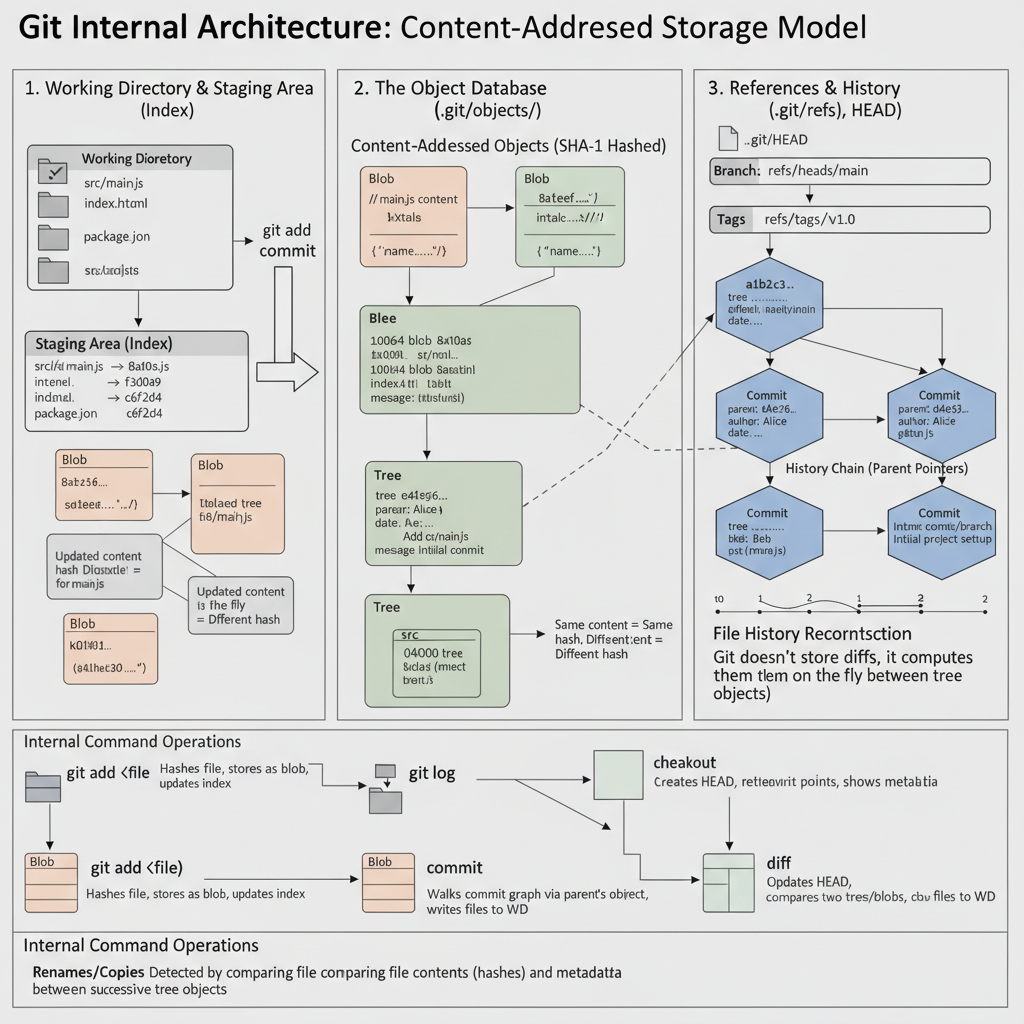
Git’s architecture is elegantly simple, revolving around three primary states or areas for your project’s data: the Working Directory, the Staging Area (Index), and the Local Repository (the .git directory).
- Working Directory: This is where you actually do your work. It consists of the files and directories that you see and edit in your file system. These files are typically extracted from the compressed database in the Local Repository.
- Staging Area (Index): Often called the “Index,” this is a lightweight, temporary snapshot of your working directory. It’s where you prepare your next commit. When you run
git add, Git takes changes from your working directory and places them in the staging area. This allows you to selectively choose which changes will be part of your next commit. - Local Repository (.git): This is the core of Git. It’s a hidden directory named
.gitwithin your project, containing all the history, configuration, and internal data structures that Git uses to manage your project. This is where Git stores its “object database” – the blobs, trees, and commit objects that make up your project’s history.
The data flow is cyclical: you modify files in your Working Directory, stage selected changes to the Staging Area with git add, and then permanently record those staged changes into your Local Repository with git commit. You can then retrieve any committed version from the Local Repository back into your Working Directory using git checkout. For collaborative efforts, your Local Repository can interact with a Remote Repository via git push and git pull.
How It Works: Step-by-Step Breakdown
Let’s trace the journey of a file from its creation to becoming part of Git’s immutable history.
Step 1: Initializing a Repository (git init)
When you start a new project or want to track an existing one with Git, the first step is typically git init. This command transforms a regular directory into a Git repository.
What happens internally:
git init creates a hidden directory named .git at the root of your project. This directory is the heart of your local Git repository.
A newly initialized .git directory usually looks something like this:
.git/
├── HEAD                # Pointer to the current branch
├── config              # Project-specific configuration options
├── description         # Used by GitWeb (web interface)
├── hooks/              # Client-side or server-side scripts (e.g., pre-commit)
│   ├── pre-commit.sample
│   └── ...
├── info/
│   └── exclude         # Global ignorable patterns (like .gitignore but local)
├── objects/            # The object database - where all content is stored
│   ├── info/
│   └── pack/
└── refs/               # Pointers to commits (branches, tags, remote heads)
    ├── heads/          # Local branches
    └── tags/           # Tags
At this stage, the objects directory is nearly empty, and HEAD typically points to refs/heads/master (or refs/heads/main in newer Git versions), even though no such branch exists yet. It’s a symbolic reference indicating that the next commit will create the main branch.
Example:
$ mkdir my_project
$ cd my_project
$ git init
Initialized empty Git repository in /Users/ai_expert/my_project/.git/
$ ls -F .git/
HEAD		config		description	hooks/		info/		objects/	refs/
Step 2: Adding Files to the Staging Area (git add)
After creating or modifying files in your working directory, you use git add <file> to stage them for the next commit.
What happens internally:
When you run git add, Git doesn’t immediately put the file into the permanent repository history. Instead, it performs two crucial actions:
- Creates a Blob Object: Git reads the exact content of the file you specified, calculates its SHA-1 hash, and then compresses that content. It stores this compressed content as a “blob” object in the
.git/objectsdirectory. The name of this file is the SHA-1 hash itself, split into a 2-character subdirectory and a 38-character filename (e.g.,objects/ab/cdef...). This blob object is immutable and content-addressed – its name is derived directly from its content. If the content never changes, its SHA-1 hash (and thus its object name) will always be the same. - Updates the Index: Git updates a special binary file called the “Index” (located at
.git/index). The Index acts as your staging area. It records the file’s path, its permissions, and crucially, the SHA-1 hash of the blob object that represents its content at the time of staging. It also stores other metadata like timestamp and file size. This means the index holds a snapshot of your working directory as you want it to appear in the next commit.
Example:
$ echo "Hello, Git internals!" > README.md
$ git add README.md
After git add README.md:
- Git reads
README.md. - Let’s say its content’s SHA-1 hash is
8a531f.... - A new file
.git/objects/8a/531f...is created, containing the compressed content “Hello, Git internals!”. - The
.git/indexfile is updated to include an entry forREADME.mdreferencing blob8a531f....
Step 3: Committing Changes (git commit)
Once you’ve staged all the desired changes, git commit takes the current state of the staging area and permanently records it as a new snapshot in your repository’s history.
What happens internally:
git commit orchestrates the creation of two more types of Git objects:
- Creates a Tree Object: Git takes the entries currently in the staging area (which represent the files and directories you want to commit). For each directory, it recursively creates “tree” objects. A tree object is essentially a directory listing: it contains a list of modes, types (blob or tree), names, and SHA-1 hashes of the files (blobs) and subdirectories (other trees) it contains. The top-level tree object represents the entire project’s directory structure at the time of the commit. Like blobs, tree objects are content-addressed and stored in
.git/objects. - Creates a Commit Object: This is the most important object. A commit object encapsulates the entire state of your project at a specific point in time. It contains:
- A pointer to the top-level tree object (the snapshot of your project).
- Pointers to its parent commit(s) (this is how history is linked).
- Author and committer names and email addresses.
- Timestamp.
- The commit message.
Like all other objects, the commit object itself is content-addressed and stored in
.git/objects.
- Updates the Branch Pointer: Finally, Git updates the branch reference (e.g.,
refs/heads/main) to point to the SHA-1 hash of this newly created commit object. TheHEADreference (which points to the branch) now indirectly points to this new commit.
Example:
$ git commit -m "Initial commit with README"
[main (root-commit) 6e2550f] Initial commit with README
 1 file changed, 1 insertion(+)
 create mode 100644 README.md
After git commit:
- A tree object is created (e.g.,
045d4a...) referencing theREADME.mdblob (8a531f...). - A commit object is created (e.g.,
6e2550f...) referencing the tree045d4a..., having no parents (as it’s the first commit), and containing the commit message and author info. - The file
.git/refs/heads/mainis created/updated to contain6e2550f.... - The
.git/indexis cleared (or rather, updated to reflect the committed state).
Step 4: Viewing History (git log)
The git log command displays the commit history.
What happens internally:
git log starts by looking at where HEAD currently points (e.g., refs/heads/main). It then reads the SHA-1 hash from that reference, which is the latest commit. It retrieves this commit object from the object database. From this commit object, it extracts:
- Its own SHA-1 hash.
- The commit message, author, and date.
- The SHA-1 hash of its parent commit(s).
It then recursively follows the parent pointers, retrieving each parent commit object and displaying its information, until it reaches a commit with no parents (the initial commit). This process effectively “walks” the commit graph backward through time.
Example:
$ git log
commit 6e2550f249581a9b2b509d17d5c9550e503b413e (HEAD -> main)
Author: AI Expert <[email protected]>
Date:   Mon Jan 15 10:00:00 2026 -0800

    Initial commit with README
git log reads .git/HEAD -> ref: refs/heads/main -> reads .git/refs/heads/main -> 6e2550f... -> reads .git/objects/6e/2550f... (the commit object) and displays its contents. Since this commit has no parents, the log stops.
Step 5: Switching Versions (git checkout)
git checkout <commit-ish> allows you to switch between different branches or specific commits.
What happens internally:
When you run git checkout <branch_name>:
- Updates HEAD: Git changes the
HEADreference to point to the specified branch (e.g.,HEADnow points torefs/heads/feature-branch). - Updates Index: Git reads the tree object referenced by the new commit that
HEADnow points to. It then updates the index to reflect the files and their corresponding blob hashes from that commit’s snapshot. - Updates Working Directory: Based on the updated index, Git modifies your working directory. It removes files that are no longer present, creates new files, and overwrites existing files with the content of the relevant blob objects from the object database.
When you run git checkout <commit_hash>:
- Detached HEAD: Git sets
HEADdirectly to the specified commit hash. This is called a “detached HEAD” state becauseHEADis no longer pointing to a branch, but directly to a commit. - Updates Index and Working Directory: Similar to checking out a branch, Git updates the index and working directory to match the snapshot of the specified commit.
Example:
$ echo "New content" > new_file.txt
$ git add new_file.txt
$ git commit -m "Add new file"
$ git checkout HEAD~1 # Go back one commit
After git checkout HEAD~1:
- Git resolves
HEAD~1to the parent of the current commit. HEADis updated to point directly to that parent commit (detached HEAD).- The index and working directory are updated to reflect the state of the
Initial commit with README(thenew_file.txtwould be removed from the working directory).
Step 6: Diffing Changes (git diff)
git diff is used to show changes between different states.
What happens internally:
git diff is a powerful comparison tool. It compares two “tree-ish” objects (commits, branches, the index, or the working directory) and presents the differences.
git diff(no arguments): Compares the working directory against the staging area (index). It reads the content of files in the working directory and compares them with the blob objects referenced in the index for those files.git diff --stagedorgit diff --cached: Compares the staging area (index) against the last commit (HEAD). It reads the blob objects referenced in the index and compares them with the blob objects referenced by the tree object of theHEADcommit.git diff <commit1> <commit2>: Compares the tree objects associated withcommit1andcommit2. Git recursively walks the trees, comparing corresponding blobs and reporting differences. This is where Git’s rename/copy detection algorithms come into play, trying to infer if a file was moved or copied based on content similarity, rather than just reporting it as a deletion in one place and an addition in another.
Git does not store diffs. When git diff runs, it reconstructs the two snapshots being compared and then computes the differences on-the-fly.
Example:
$ echo "Updated content" > README.md
$ git diff # Shows changes in working directory vs index
diff --git a/README.md b/README.md
index 8a531f..0d2a8c 100644
--- a/README.md
+++ b/README.md
@@ -1 +1 @@
-Hello, Git internals!
+Updated content
Here, git diff compares the current README.md file in the working directory (new content) with the blob 8a531f... (old content) referenced by the index.
Deep Dive: Internal Mechanisms
Git’s power stems from several core internal mechanisms that work in concert.
Mechanism 1: The Object Database (.git/objects)
The .git/objects directory is the heart of Git’s storage model. It’s a content-addressable file system. This means that every piece of data Git stores (file contents, directory listings, commit metadata) is given a name (its address) that is a cryptographic hash of its content. If the content changes, the name changes. This ensures data integrity and efficiency.
Content-Addressable Storage and SHA-1 Hashing: When Git stores an object, it first computes the SHA-1 hash of its content (prefixed with a header indicating its type and size). This 40-character hexadecimal hash becomes the object’s unique identifier. The object is then stored in a file named after this hash, typically in a subdirectory named after the first two characters of the hash.
Example: A blob with hash 8a531f... will be stored at .git/objects/8a/531f....
There are four primary types of Git objects:
Blob Object:
- Purpose: Stores the exact content of a file. It doesn’t store file names or paths, only raw data.
- Content: The compressed binary content of a file.
- Example (using
git cat-file -p <blob_hash>):
(The blob object$ echo "Hello World" | git hash-object -w --stdin 2ef7bde608ce5404e97d5f042f95f89f1c232871 $ git cat-file -p 2ef7bde608ce5404e97d5f042f95f89f1c232871 Hello World2e/f7bde6...would contain the compressed “Hello World”)
Tree Object:
- Purpose: Represents a directory snapshot. It maps file names and permissions to blob or other tree objects.
- Content: A list of entries, each specifying:
- File mode (permissions, e.g.,
100644for a regular file,100755for executable,040000for a directory). - Object type (
blobortree). - SHA-1 hash of the referenced object.
- Filename.
- File mode (permissions, e.g.,
- Example:
This tree object represents a directory containing$ git cat-file -p <tree_hash> 100644 blob 8a531f2... README.md 040000 tree d2e1f3... srcREADME.md(a blob) andsrc(another tree).
Commit Object:
- Purpose: Represents a specific point in the project’s history. It links a snapshot (a top-level tree) with its ancestors and metadata.
- Content:
tree <tree_hash>: SHA-1 of the top-level tree object for this commit.parent <parent_commit_hash>(optional, multiple for merge commits): SHA-1 of the parent commit(s).author <name> <email> <timestamp>committer <name> <email> <timestamp><blank line><commit message>
- Example:
$ git cat-file -p <commit_hash>
tree 045d4a23...
parent 6e2550f2...
author AI Expert <[email protected]> 1673899200 -0800
committer AI Expert <[email protected]> 1673899200 -0800

Initial commit with README
Tag Object:
- Purpose: Used for annotated tags, which are permanent, movable pointers to a specific commit. Unlike simple lightweight tags (which are just pointers in
refs/tags), annotated tags are full Git objects. - Content:
object <commit_hash>: The object (usually a commit) that the tag points to.type commit: The type of object being tagged.tag <tag_name>tagger <name> <email> <timestamp><blank line><tag message>
- Example:
$ git cat-file -p <tag_hash>
object 6e2550f2...
type commit
tag v1.0
tagger AI Expert <[email protected]> 1673899200 -0800

Version 1.0 release
- Purpose: Used for annotated tags, which are permanent, movable pointers to a specific commit. Unlike simple lightweight tags (which are just pointers in
Loose Objects vs. Packfiles:
Initially, Git stores objects as individual “loose” files. As the repository grows, Git can “pack” these objects into a single file called a “packfile” (.git/objects/pack/pack-*.pack). Packfiles use delta compression, storing only the differences between similar objects, significantly reducing storage space and improving performance. A corresponding .idx file provides an index for quick object lookup within the packfile. This packing process is usually triggered automatically (e.g., by git gc or after a certain number of loose objects).
Mechanism 2: References (.git/refs and HEAD)
While objects store the actual data, “references” (or “refs”) provide human-readable names to specific commits. They are essentially pointers.
- Branches (
.git/refs/heads/): A branch is simply a file in.git/refs/heads/that contains the SHA-1 hash of the latest commit on that branch. When you make a new commit, Git updates this file to point to the new commit’s hash.- Example:
.git/refs/heads/mainmight contain6e2550f2....
- Example:
- Tags (
.git/refs/tags/): Similar to branches, lightweight tags are files in.git/refs/tags/that point directly to a commit hash. Annotated tags, as discussed, are full Git objects, and the ref file points to the tag object’s hash.- Example:
.git/refs/tags/v1.0might contain6e2550f2....
- Example:
- HEAD (
.git/HEAD): This is the most crucial reference. It tells Git what your current working branch or commit is.- Symbolic Reference: In most cases,
HEADis a “symbolic reference” to a branch. It’s a file containing a path likeref: refs/heads/main. This means you are currently on themainbranch. When you commit, Git knows to updaterefs/heads/main. - Direct Reference (Detached HEAD): If you
git checkouta specific commit (not a branch),HEADwill contain the raw SHA-1 hash of that commit. This is a “detached HEAD” state, meaning you’re not on any branch, and new commits would not advance a branch pointer.
- Symbolic Reference: In most cases,
Mechanism 3: The Index (.git/index)
The index, also known as the staging area, is a crucial intermediate layer between your working directory and the repository. It’s a binary file (.git/index) that stores a snapshot of the files you intend to commit.
- Purpose: The index allows you to carefully craft your next commit. You can
git addindividual files or parts of files, building up a commit piece by piece, rather than committing all changes in your working directory at once. - Content: The index doesn’t store file content directly. Instead, for each staged file, it stores:
- File path.
- File mode (permissions).
- Timestamp and size from the file system (for quick checks if the file has changed).
- The SHA-1 hash of the blob object that represents the file’s content as it was added to the index.
This allows Git to quickly determine if a file in the working directory has changed since it was last added to the index, or if a staged file differs from the version in the last commit.
Mechanism 4: Renames and Copies Detection
Git does not explicitly store rename or copy events in its history. Instead, it stores snapshots (tree objects referencing blobs). When you rename a file, Git simply sees a deletion of the old file name and an addition of a new file name with identical content.
However, when you run commands like git diff, git log -p, or git merge, Git employs sophisticated algorithms to detect renames and copies. It does this by comparing the content of files that appear to have been deleted in one commit and added in another. If a “deleted” file’s content is sufficiently similar (e.g., >50% by default) to an “added” file’s content, Git infers that a rename (or copy) occurred and displays it as such. This heuristic approach is incredibly powerful because it works even if you modify the file slightly during the rename.
Hands-On Example: Building a Mini Version
Let’s simulate Git’s core object creation with a simple Python script. We’ll focus on creating blob and “commit” objects to illustrate content addressing and linking.
import hashlib
import zlib
import os

def hash_and_compress(data_bytes):
    """Hashes and compresses data, returning SHA-1 and compressed bytes."""
    sha1 = hashlib.sha1(data_bytes).hexdigest()
    compressed_data = zlib.compress(data_bytes)
    return sha1, compressed_data

def write_object(obj_type, content):
    """Simulates git hash-object -w, writes an object to .git/objects."""
    header = f"{obj_type} {len(content)}\0".encode('utf-8')
    store_content = header + content.encode('utf-8')

    sha1, compressed_content = hash_and_compress(store_content)

    obj_dir = os.path.join(".git", "objects", sha1[:2])
    os.makedirs(obj_dir, exist_ok=True)

    obj_path = os.path.join(obj_dir, sha1[2:])
    with open(obj_path, "wb") as f:
        f.write(compressed_content)

    print(f"Created {obj_type} object: {sha1}")
    return sha1

def read_object(sha1):
    """Simulates git cat-file -p, reads and decompresses an object."""
    obj_path = os.path.join(".git", "objects", sha1[:2], sha1[2:])
    if not os.path.exists(obj_path):
        return None

    with open(obj_path, "rb") as f:
        compressed_content = f.read()

    decompressed_content = zlib.decompress(compressed_content).decode('utf-8')

    # Split header from actual content
    null_byte_index = decompressed_content.find('\0')
    if null_byte_index == -1:
        return decompressed_content # Malformed or non-standard Git object

    header = decompressed_content[:null_byte_index]
    content = decompressed_content[null_byte_index + 1:]

    obj_type, obj_size = header.split(' ')
    print(f"Read object {sha1}: Type={obj_type}, Size={obj_size}")
    return content

# --- Main Simulation ---
if __name__ == "__main__":
    # 1. Initialize a dummy .git directory
    os.makedirs(".git/objects", exist_ok=True)
    os.makedirs(".git/refs/heads", exist_ok=True)

    print("--- Simulating Git Internals ---")

    # 2. Create a blob object (file content)
    file_content = "Hello, Git World!"
    blob_sha = write_object("blob", file_content)

    # 3. Manually construct a tree object content (simplified: just one blob)
    # A real tree object would have binary entries, but for illustration, we'll use text.
    # Format: mode type hash\tname
    tree_content = f"100644 blob {blob_sha}\tmy_file.txt"
    tree_sha = write_object("tree", tree_content)

    # 4. Create the first commit object
    commit_message = "Initial commit"
    author_info = "AI Expert <[email protected]> 1673899200 -0800" # Timestamp for 2026-01-18
    commit_content = (
        f"tree {tree_sha}\n"
        f"author {author_info}\n"
        f"committer {author_info}\n\n"
        f"{commit_message}\n"
    )
    initial_commit_sha = write_object("commit", commit_content)

    # 5. Simulate updating a branch pointer (e.g., 'main')
    with open(".git/refs/heads/main", "w") as f:
        f.write(initial_commit_sha + "\n")
    with open(".git/HEAD", "w") as f:
        f.write("ref: refs/heads/main\n")
    print(f"Updated main branch to point to {initial_commit_sha}")
    print(f"HEAD now points to main branch.")

    print("\n--- Inspecting Objects ---")
    # Read the commit object
    commit_data = read_object(initial_commit_sha)
    print(f"\nContent of initial commit object:\n{commit_data}")

    # Extract tree hash from commit and read the tree object
    tree_line = [line for line in commit_data.split('\n') if line.startswith("tree")][0]
    tree_hash_from_commit = tree_line.split(' ')[1]
    tree_data = read_object(tree_hash_from_commit)
    print(f"\nContent of tree object:\n{tree_data}")

    # Extract blob hash from tree and read the blob object
    blob_line = [line for line in tree_data.split('\n') if line.startswith("100644 blob")][0]
    blob_hash_from_tree = blob_line.split(' ')[2]
    blob_data = read_object(blob_hash_from_tree)
    print(f"\nContent of blob object:\n{blob_data}")

    # Clean up dummy .git directory
    # import shutil
    # shutil.rmtree(".git")
    # print("\nCleaned up .git directory.")
Walkthrough:
hash_and_compress: This helper mimics Git’s internal hashing and compression. Git uses zlib for compression.write_object: This function takes an object type (blob, tree, commit) and its content. It constructs the Git object header (e.g.,blob 17\0Hello, Git World!), computes its SHA-1 hash, compresses it, and then writes it to the appropriate path within the.git/objectsstructure.read_object: This function reverses the process, decompressing and parsing an object given its SHA-1 hash.- Simulation:
- We create a blob for
my_file.txt. - We then manually assemble the textual representation of a tree object that references this blob. In real Git, this is a binary format, but the concept is the same.
- Next, we create a commit object, linking it to our tree and providing metadata.
- Finally, we update the
mainbranch ref andHEADto point to this new commit, simulatinggit commit.
- We create a blob for
- Inspection: The script then demonstrates
git cat-file -pbehavior by reading the commit, then its referenced tree, and finally the blob, showing how Git traverses these objects to reconstruct snapshots.
This mini-version demonstrates the fundamental content-addressable nature of Git objects and how they link together to form a coherent snapshot and history.
Real-World Project Example
Let’s trace a simple Git workflow and observe its internal effects.
Setup:
$ mkdir git_demo
$ cd git_demo
$ git init
Initialized empty Git repository in /Users/ai_expert/git_demo/.git/
$ ls -F .git/
HEAD		config		description	hooks/		info/		objects/	refs/
Notice .git/objects is empty except for info/ and pack/. HEAD contains ref: refs/heads/main.
Step 1: Create and Commit a File
$ echo "This is the first line." > file1.txt
$ git add file1.txt
$ git commit -m "Add file1.txt"
[main (root-commit) d47f3b5] Add file1.txt
 1 file changed, 1 insertion(+)
 create mode 100644 file1.txt
Observation:
.git/objects: Now contains three new objects:- A blob object for
file1.txt’s content (e.g.,2f/a1b2c3...). - A tree object representing the root directory, referencing the blob (e.g.,
5b/c6d7e8...). - A commit object, referencing the tree and containing the commit message (e.g.,
d4/7f3b5c...).
- A blob object for
.git/refs/heads/main: Now contains the SHA-1 hash of the commit object (d47f3b5c...).git log: Shows this single commit.git cat-file -p d47f3b5c: Shows the commit object’s details.git cat-file -p <tree_hash_from_commit>: Shows the tree object’s details, including the blob forfile1.txt.git cat-file -p <blob_hash_from_tree>: Shows “This is the first line.”.
Step 2: Modify a File and Commit Again
$ echo "This is the second line." >> file1.txt
$ git add file1.txt
$ git commit -m "Append second line to file1.txt"
[main 7e8f9a0] Append second line to file1.txt
 1 file changed, 1 insertion(+)
Observation:
.git/objects: Another three new objects are created:- A new blob object for
file1.txt’s new content (e.g.,8g/h9i0j1...). Importantly, the old blob (2f/a1b2c3...) is still there; Git doesn’t modify or delete objects. - A new tree object referencing the new blob.
- A new commit object. This commit’s
parentfield will point to the previous commit (d47f3b5c...).
- A new blob object for
.git/refs/heads/main: Updated to point to the new commit (7e8f9a0...).git log --oneline --graph: Shows two linked commits.* 7e8f9a0 (HEAD -> main) Append second line to file1.txt * d47f3b5 Add file1.txt
This demonstrates how Git builds a history of snapshots, where each commit references a full tree, and that tree references specific blobs. The chain of parent pointers forms the project’s history.
Performance & Optimization
Git’s design includes several key optimizations to ensure it remains fast and efficient, even for large repositories.
- Content-Addressable Storage and Immutability: Because objects are immutable and named by their content hash, Git can quickly check if an object already exists. If the content hasn’t changed, Git doesn’t need to store it again, saving space and ensuring integrity. This also means objects can be easily shared and cached.
- Packfiles and Delta Compression: As mentioned, Git packs loose objects into packfiles. This is a crucial optimization. Instead of storing every version of a file entirely, packfiles identify similar objects and store only the “delta” (difference) between them and a base object. This dramatically reduces storage size, especially for text files that evolve incrementally.
- Hashing for Speed: SHA-1 hashing is fast. Generating hashes for files and comparing them is quicker than performing full byte-by-byte comparisons, allowing Git to quickly determine what has changed.
- Local Operations: Because Git is distributed, most operations (commit, diff, branch, merge) are performed on your local repository without needing network access. This makes these operations incredibly fast compared to centralized VCS.
- Index for Fast Staging: The index (staging area) acts as a high-speed cache. By storing file metadata and blob hashes, Git can quickly compare the working directory with the staged state and the last commit without re-reading entire files unless necessary.
Common Misconceptions
- “Git stores diffs/changes.”: This is the most common misconception. Git fundamentally stores snapshots of your project (full file contents referenced by tree objects) with each commit. It computes diffs on demand when you run
git difforgit log -p. This snapshot model is more robust and faster for many operations, especially merges and checking out old versions. - “Branches are separate copies of the code.”: Branches in Git are incredibly lightweight. They are merely pointers (references) to specific commit objects. Creating a branch is as simple as creating a new file in
.git/refs/heads/with a commit hash. Switching branches only involves moving theHEADpointer and updating your working directory to match the target commit’s snapshot. - "
git addsaves files to the repository.":git adddoes not commit files. It stages them by creating blob objects for their content and updating the index. The files are only permanently recorded in the repository’s history whengit commitis run. - “Git is only for code.”: While popular for code, Git can track any text-based or binary files. Its internal mechanisms (hashing, delta compression) are optimized for text but work for any data. However, large binary files that change frequently can bloat repositories (Git LFS helps with this).
Advanced Topics
- Garbage Collection (
git gc): Periodically, Git runs garbage collection to clean up unnecessary objects (e.g., objects from abandoned branches) and to pack loose objects into packfiles for efficiency. This helps keep the repository lean and fast. - Reflogs (
git reflog): The reflog (.git/logs/HEADand.git/logs/refs/heads/*) is a local history of where yourHEADand branch pointers have been. It’s a lifesaver for recovering “lost” commits or reverting accidental operations, as it tracks every time a ref was updated. - Bare Repositories: A bare repository (
git init --bare) is a.gitdirectory without a working directory. These are typically used as central “origin” repositories on servers, as there’s no need to edit files directly on the server. - Internal APIs (
git plumbing commands): Commands likegit hash-object,git cat-file,git update-index,git write-tree, andgit commit-treeare known as “plumbing” commands. They interact directly with the core Git objects and internal data structures, allowing you to build your own Git commands or scripts that operate at a low level. The “porcelain” commands (likegit add,git commit) are high-level scripts built on top of these plumbing commands.
Comparison with Alternatives
- Subversion (SVN):
- Centralized: Requires a central server for all operations.
- Delta-based: Stores changes as diffs between revisions. Reconstructing a full file requires applying all deltas from the base version.
- Files-based: Tracks changes to individual files. Renames and copies are explicit operations recorded in history.
- Git Advantage: Distributed nature, snapshot-based storage (faster checkout/merges), robust data integrity, lightweight branching.
- Mercurial (Hg):
- Distributed: Similar to Git.
- Snapshot-based: Also stores snapshots, but uses a different internal object model (manifests, changesets).
- Git vs. Hg: Both are excellent distributed VCS. Git’s object model is arguably more flexible and its community/ecosystem is larger. Mercurial is often praised for its simpler command set and more consistent design for some operations.
Debugging & Inspection Tools
Understanding Git’s internals makes debugging much easier.
git cat-file -t <object>: Shows the type of a Git object (blob, tree, commit, tag).git cat-file -p <object>: Pretty-prints the content of a Git object. Essential for inspecting blobs, trees, and commits.git hash-object -w <file>: Hashes a file’s content and writes it as a blob object to the database, returning its SHA-1. Use--stdinto hash from standard input.git ls-files -s: Shows the contents of the index (staging area), including file modes, SHA-1 hashes of blobs, and filenames.git rev-parse <ref>: Converts any Git reference (branch name, tag, HEAD, relative commit) into its full SHA-1 hash.git verify-pack -v <packfile>: Verifies the integrity of a packfile and lists its contents.- Direct Inspection of
.git: Simply navigating the.gitdirectory, especiallyobjectsandrefs, can reveal a lot about the repository’s state.
Key Takeaways
- Content-Addressable Storage: Git stores all data as objects (blobs, trees, commits, tags) addressed by their SHA-1 hash, ensuring data integrity and preventing duplication.
- Snapshots, Not Diffs: Each commit is a complete snapshot of your project’s files (represented by a top-level tree object), not just a list of changes. Diffs are computed on demand.
- The Object Graph: Commits form a directed acyclic graph (DAG) through parent pointers, establishing the project’s history.
- The Three Trees: Git manages three states: the Working Directory (what you see), the Staging Area/Index (what will be in the next commit), and the Repository (the committed history).
- Lightweight References: Branches and
HEADare simply pointers to commits, making branching and switching fast and cheap. - Efficiency through Compression: Packfiles and delta compression significantly reduce storage requirements.
This deep dive should provide you with an intuitive and unforgettable understanding of how Git operates at its core, empowering you to use it more effectively and confidently.
References
Transparency Note
This document was generated by an AI expert to provide a comprehensive and accurate explanation of Git’s internal workings as of January 2026. While every effort has been made to ensure technical accuracy and clarity, the field of software development is constantly evolving.